
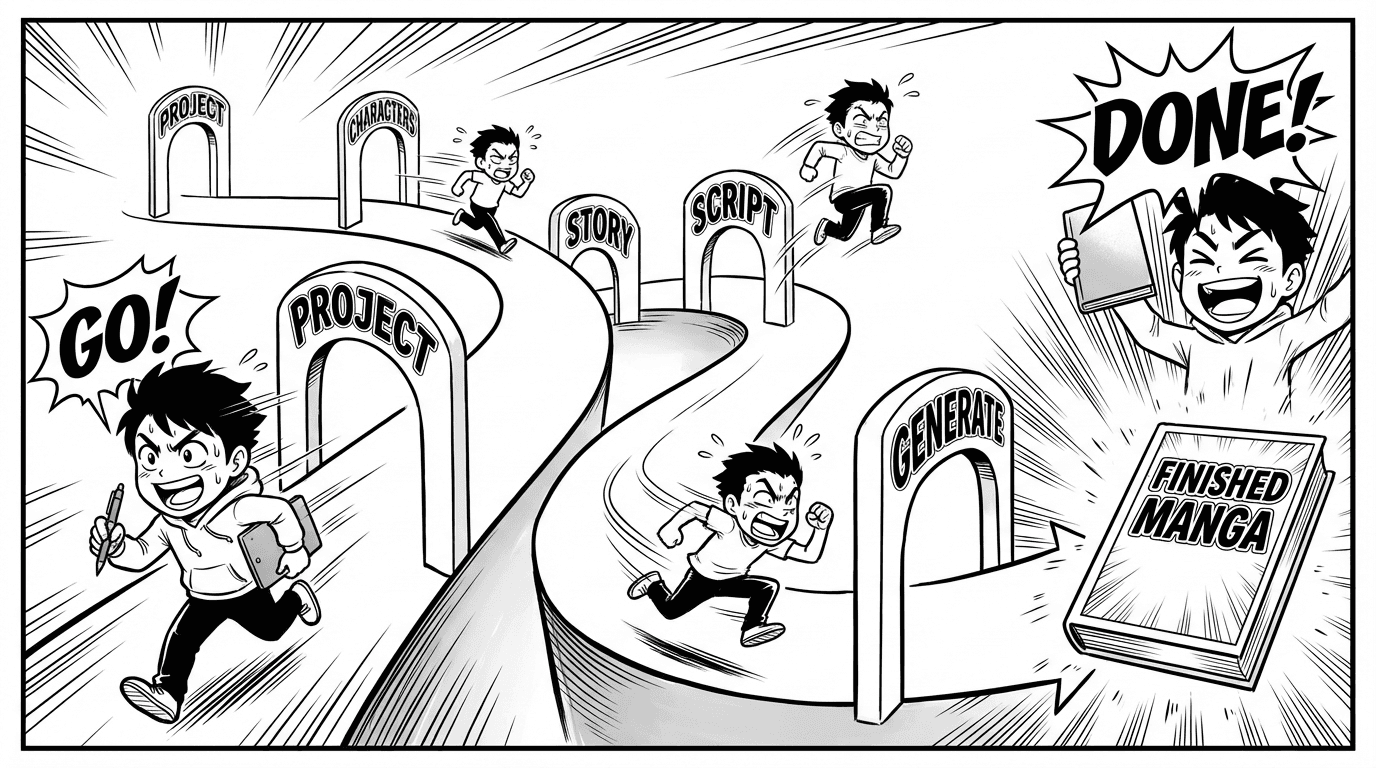
Guided Story: Create Your Manga in Five Steps
Guided Story (Quick story) is the older five-step flow. New books start in Studio or Adapt; existing Guided Story projects stay open.
What is Guided Story?
Guided Story is MangaOra's older step-by-step flow: project and style, characters, story beginning, script, then pages. New books should start in Studio or Adapt. If you already have a Guided Story, it stays in Legacy Projects and you can keep reading, generating, and exporting it. New Quick stories are off unless an admin turns the feature back on for your account.
Step 1: Project
Name your project and choose a style: Manga, Comic, or Webtoon. This sets the look and feel for all generated art. Open an existing Guided Story from Legacy Projects to continue. New stories should be created in Studio.
Step 2: Characters
Add at least one character with a name and description. Each character can have a generated reference image (1 credit per reference). The AI uses these to keep your cast consistent across every page. You can add more characters anytime and regenerate references until they look right.
Step 3: Story
Write your story beginning—the opening scene or chapter summary. The AI uses this (and your characters) to generate the script in the next step. You can use AI help to suggest a description or improve what you wrote. Story section (Opening, Build-up, Midpoint, Climax, Resolution) is set automatically from how many pages you have, or you can override it for power users.
Step 4: Script
Generate a panel-by-panel script from your story. The script is your blueprint: scene descriptions, dialogue, and action for each panel. You can edit any panel or use AI to improve it. When you're happy, move to Step 5 to generate the actual art. Each page uses 2 credits; the number of pages you can generate depends on your credit balance.
Step 5: Generate
Generate pages with one click. Each page appears as it's ready—you'll see a full card per panel so you know exactly how the export will look. Use the Page Composer Preview and Export section to download your story as PDF or images. You can also open the project in the editor to tweak overlays or read your manga in-app.
Credits and limits
Character reference images cost 1 credit each. Each generated page costs 2 credits. Credits come from your plan or add-on packs. If you run out, you'll see a clear upgrade or get-credits option so you can keep creating.