
Sketch to Manga: Standalone Page and Your Transform Gallery
Use the Sketch to manga page to turn drawings into manga style, save them to your gallery, and manage, download, or add them to projects.
What is the Sketch to manga page?
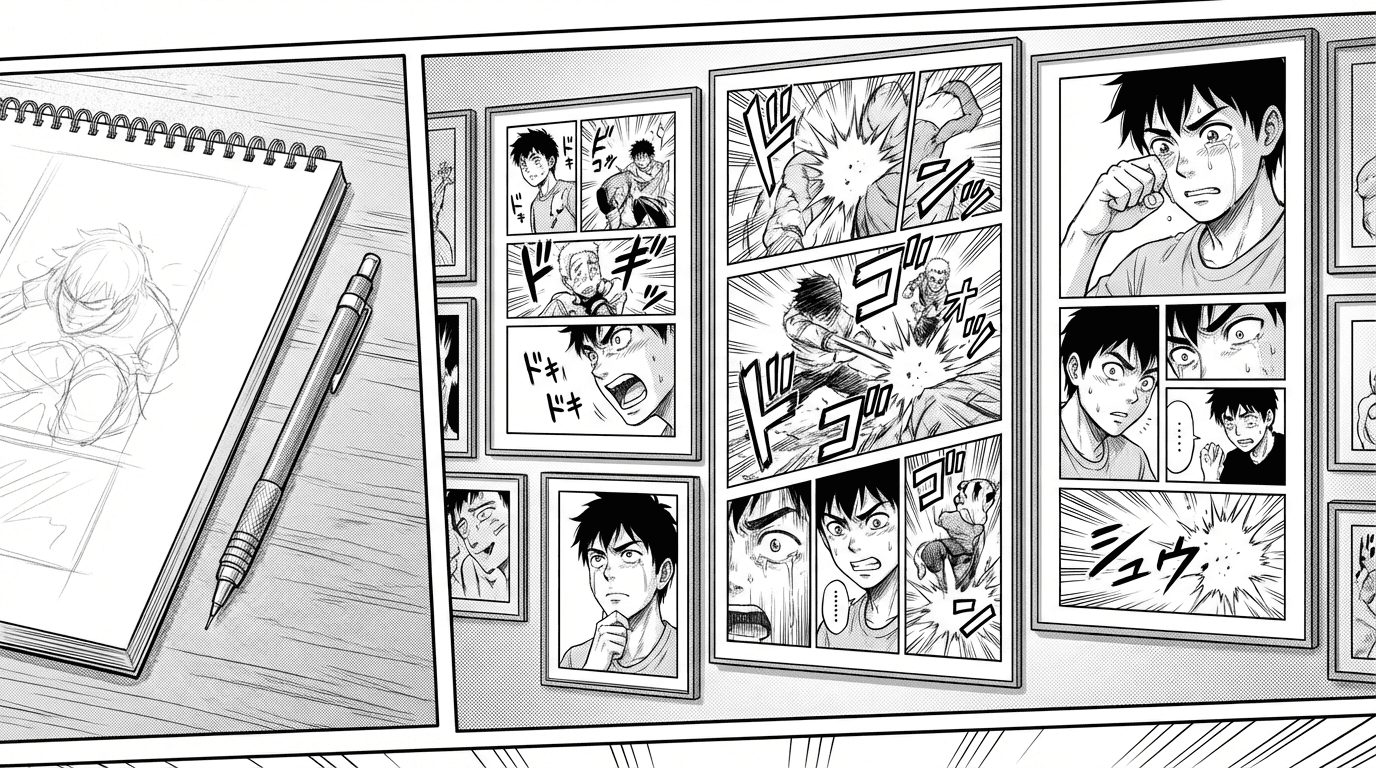
The Sketch to manga page (under Dashboard → Sketch to manga, or the "Sketch to manga" card on your dashboard) is a standalone tool for turning your drawings into manga, comic, or webtoon style. You don't need a project or story—just upload a sketch, pick a style and intensity, optionally describe what you want, and hit Transform. Each transformation uses one from your monthly transformation limit (or add-on credits) and is automatically saved to your gallery so you can find it later.
How to transform a sketch
Upload an image (JPG or PNG, max 6MB), choose Style (Manga, Comic, or Webtoon) and Intensity (Light, Medium, or Strong). Use the optional "What should the result show?" field to describe the final image—for example, "Young woman in a dojo gi, determined expression"—so the AI uses your sketch as a pose reference and produces full, detailed art. You can also add an optional "Category for gallery" (e.g. Characters, Backgrounds) before transforming; it's saved with the image so you can filter later. Click "Transform & save to gallery" and your result appears below, with a Download button and a link to add it to a project.
My transformed images — the gallery
Every transformed image is saved to your library. You can filter by style (All styles, Manga, Comic, Webtoon), sort by Newest or Oldest, and see each image with its style badge and date. Hover a card to reveal actions: Download, reuse in Studio, or Delete. You can also add or edit a category per image (e.g. "Characters," "Concepts")—useful when you have many transforms and want to find them later.
Download and reuse in Studio
Use Download on the result or on any gallery card to save the image to your device. You can also reuse saved images in Studio as panel inspiration, style references, or character references. The library keeps a permanent copy in your account so you can reuse transforms across books without re-uploading.
Does this count toward my limit?
Yes. Every transform on the Sketch to manga page counts as one transformation toward your monthly limit (or uses add-on credits if you have them). The same limit applies to transforms you do in Studio. Your dashboard and billing area show how many transformations you've used and how many you have left.